 LinkedFlow
 Human approvals
The “Human Approval” node pauses the workflow and leaves the proposed message in this inbox. Nothing goes out until someone on your team approves it — as is or edited.
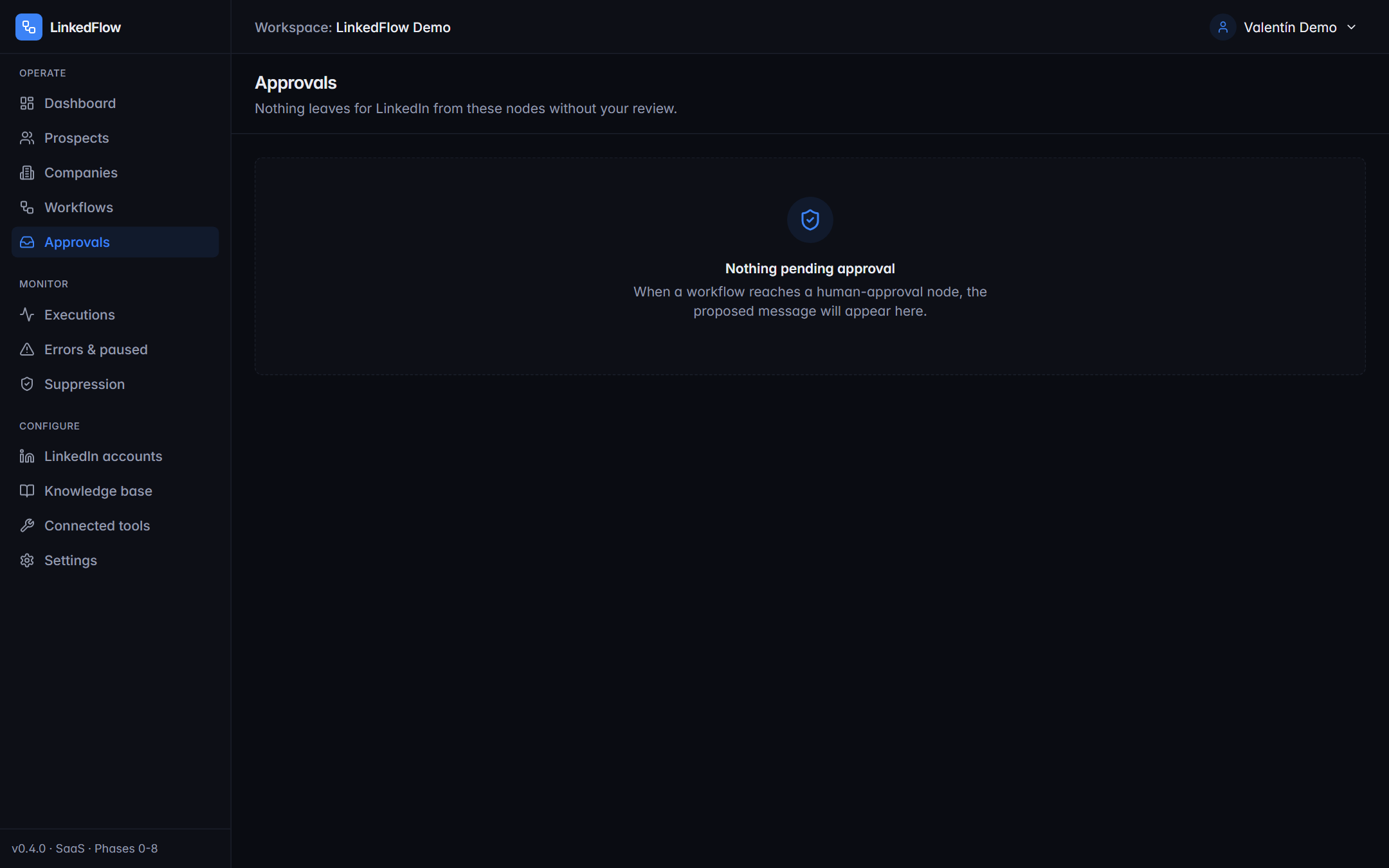
Working the inbox
Each card shows the prospect (with a link to their LinkedIn profile), the journey's context and the proposed message in an editable box:
- Approve: the message goes out exactly as the workflow proposed it.
- Edit and approve: touch the text (you'll see the “edited” mark) and approve your version. “Undo edit” restores the original proposal.
- Reject: the message isn't sent and the journey continues through the node's “rejected” output (or ends, if you didn't connect anything there).
Resolving approvals requires the MANAGER role or above. An approved send still respects the account's quotas and schedule: if the day is used up, it will go out in the next window.
A message approved by a human is the only automation that bypasses stop-on-reply — it's your decision, not the robot's. Suppression, quotas and the activity window still apply.
Email alerts
When approvals are waiting, the workspace's managers receive a grouped email (at most one every few minutes per workspace, in each recipient's language). It can be turned off in the workspace settings if you'd rather work from the inbox alone.
When to use approval instead of sending directly? When breaking in a new workflow (the first two weeks teach you a lot), for high-stakes messages (C-level, big accounts) or when the AI drafts and you want human oversight. The “AI drafts + human approves” pattern is ready-made in the templates.