 LinkedFlow
 Getting started
From zero to your first session: how an account is created, how to sign in and what to look at first.
1. Create your account
There is no direct sign-up form in LinkedFlow: an account is born from a purchase with a free trial or from an invitation.
With the free trial
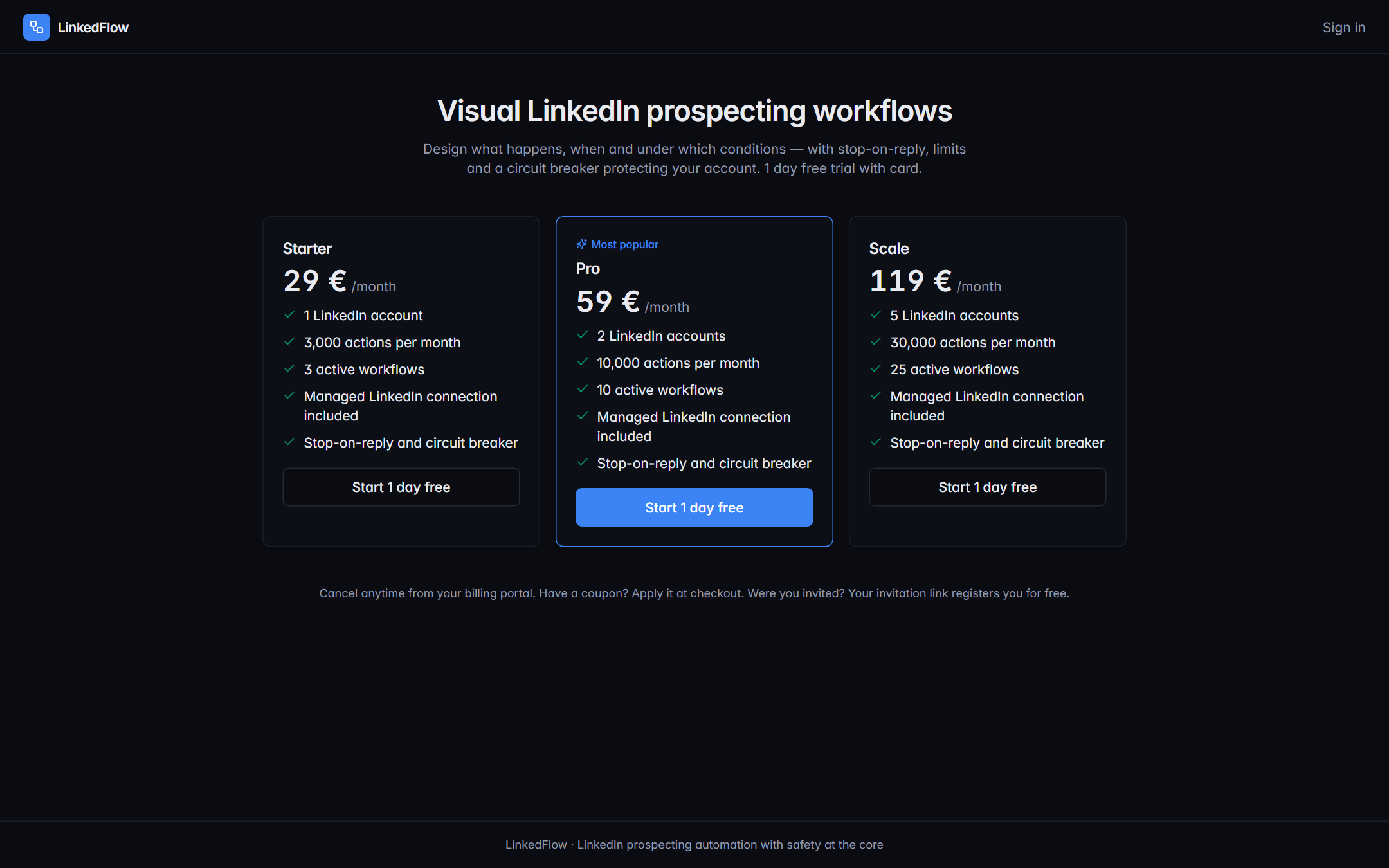
- Go to the pricing page and choose a plan. The three plans are compared in Plans and billing.
- Enter your email and continue to secure checkout (Stripe). The trial requires a card, but nothing is charged until it ends, and there is only one trial per email.
- Once payment is confirmed you'll receive an email to set your password. The link expires after 72 hours; if you miss it, the page itself lets you request a new one.
With an invitation
If the LinkedFlow team has sent you an invitation, the link in the email takes you to a page where you choose your name and password. Invitations are personal (you must register with the email that received it), single-use and time-limited.
2. Sign in to the app
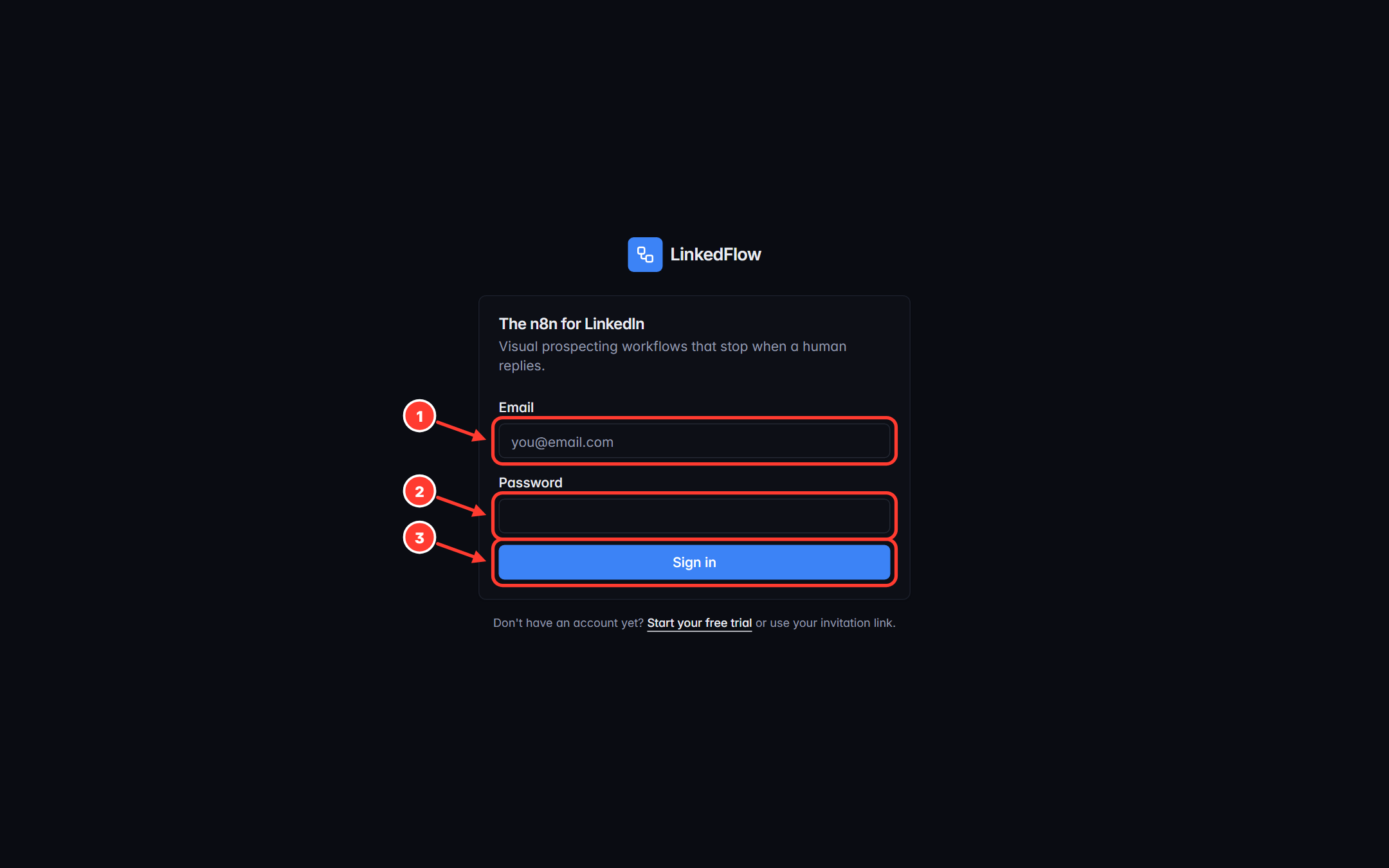
- Email you registered with.
- Password you set from the welcome email.
- Sign in. If you don't have an account yet, the link below takes you to start the trial.
3. Choose your language
The app is available in Spanish, English, French and Portuguese. The first time, it uses your browser's language; you can pin it in My account (user menu, top right → My account → Language). The emails LinkedFlow sends you go out in the language you choose here.
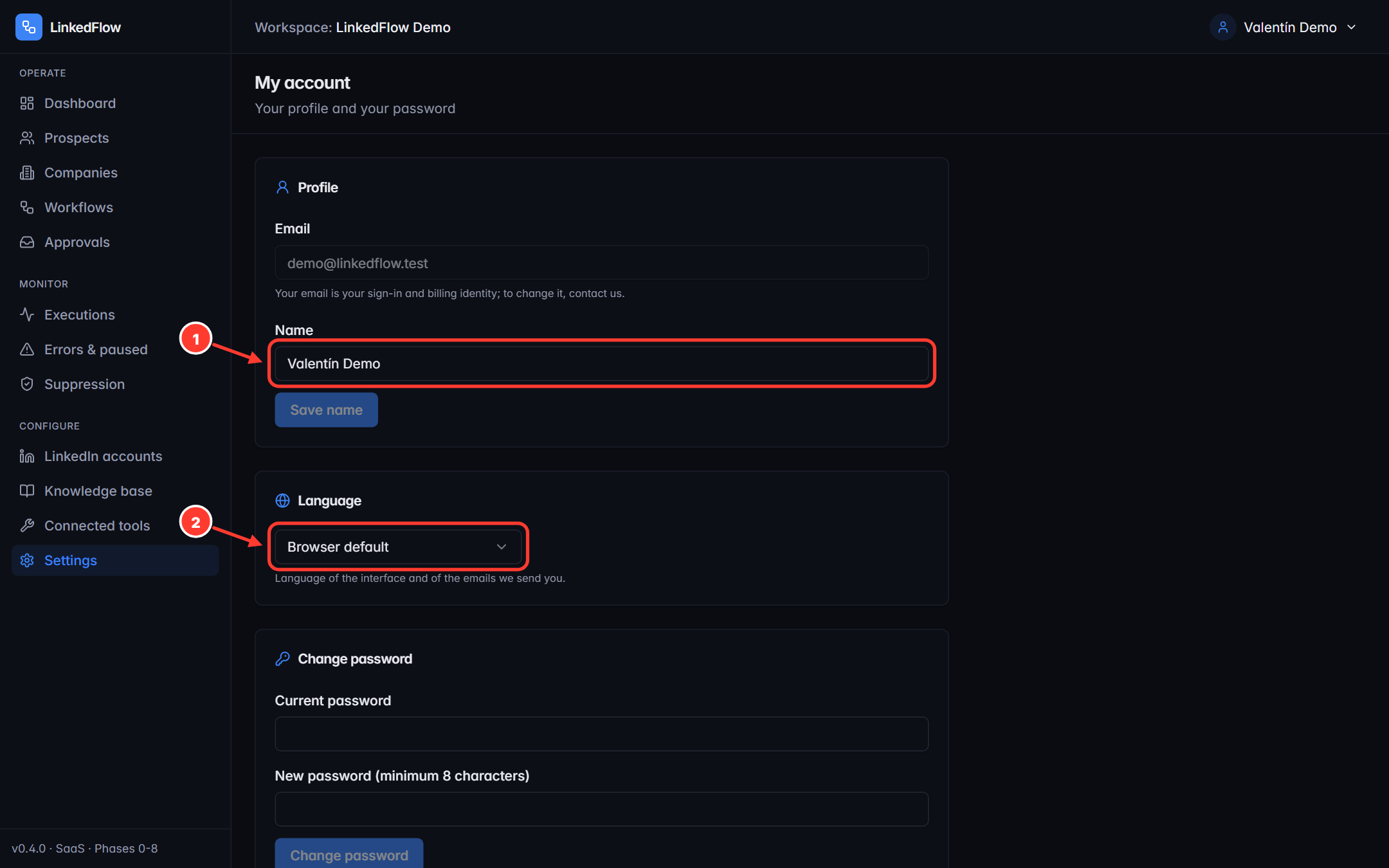
- Your name, as it will be shown to the team.
- Language selector: “Browser default” or a fixed one. It applies instantly, without reloading.
4. The dashboard
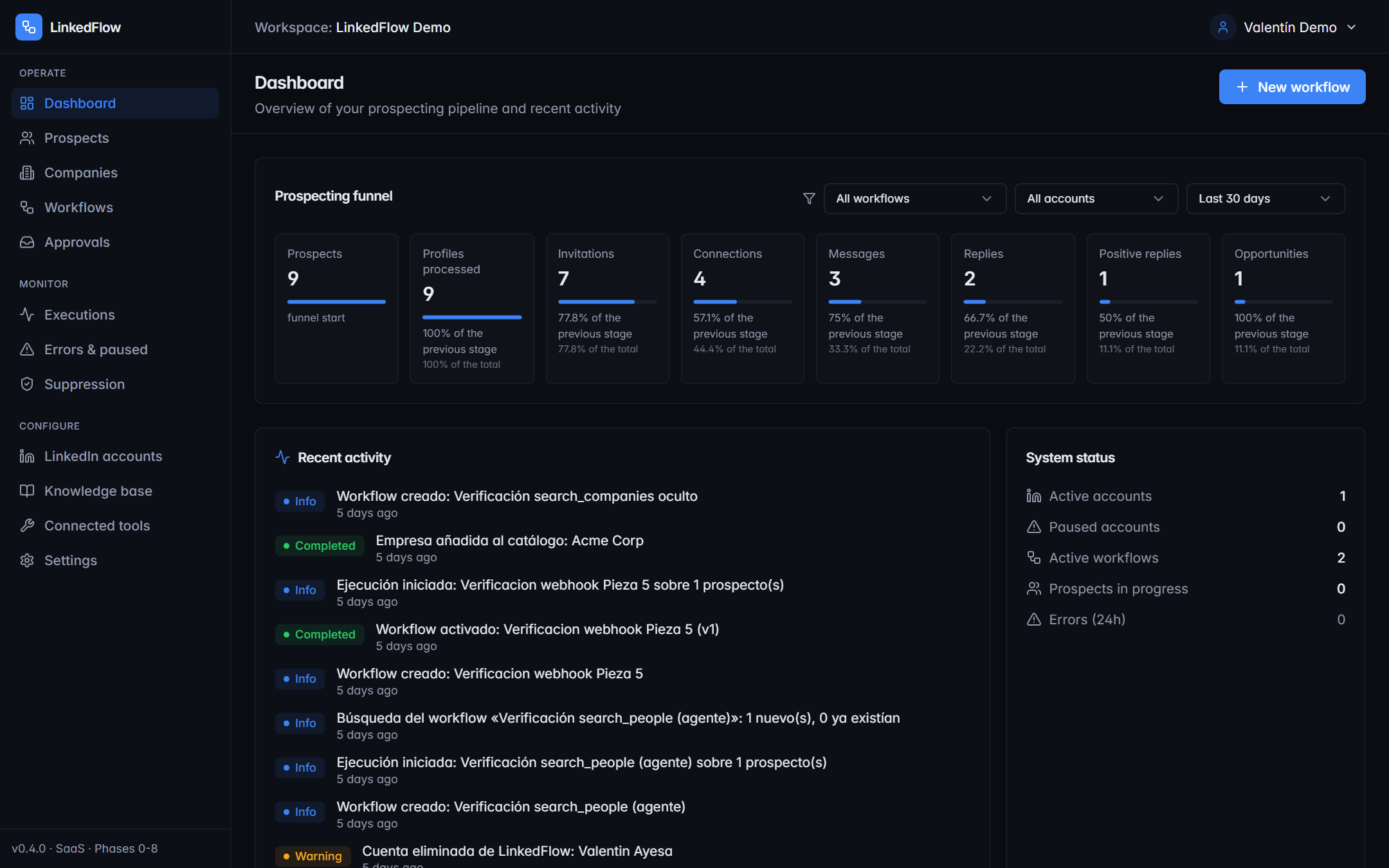
What each area tells you:
- Funnel: how many prospects have been visited, invited, connected, contacted and have replied. It's fed by real executions.
- Recent activity: the latest workspace events (accounts connected, imports, workflows created…).
- System status: the health of your accounts and the engine at a glance.
- Quick links: shortcuts to the four most common tasks.
5. Your first complete loop
The recommended order to get the machine running:
- Connect your LinkedIn account and review its limits and schedule.
- Fill the CRM: search prospects on LinkedIn or import a CSV.
- Create a workflow from a template and review it in the builder.
- Press Test to see it dry-run (without touching LinkedIn) and then Run with a small list.
- Follow the results in Executions.
Start small: a list of 10–20 prospects and the default quotas. LinkedFlow postpones whatever doesn't fit in the day, so no hurry is worth a restricted account.