 LinkedFlow
 AI Mode
LinkedFlow's AI works on three levels: it suggests (copilot), it acts on its own with guardrails (autopilot) and it drafts inside workflows (AI nodes). Everything is fed by your knowledge base and, if you want, by your own tools and models.
Copilot
In any prospect's conversation, the suggestion button generates a draft reply based on the real thread and your knowledge base. The draft is never sent on its own: you edit it and you send it. Available from the Pro plan.
Autopilot
The autopilot replies for you in the conversations where you enable it (conversation by conversation, not globally). Available on the Scale plan. Its guardrails:
- It only replies if the prospect had the last word — it never insists or reopens threads.
- It waits a random human delay (30–120 s) before replying; an instant reply gives the bot away.
- At most 5 replies per conversation per day, on top of the account's quotas.
- It respects the activity window: outside the schedule, the reply waits for the opening.
- If it's unsure, the prospect gets upset or asks for something off-script, it escalates to a human and the conversation drops to copilot mode until you reactivate it.
- If a prospect asks not to be contacted, it can add them to the suppression list itself.
- If credits run out or you downgrade your plan, it degrades to copilot: nothing goes out on its own again.
You can give it your own instructions (“keep it informal, 3 sentences max, offer the Thursday demo”) in the agent's settings, and it converses with each prospect in the prospect's language.
AI nodes in workflows
The five nodes (agent, generate message, personalise, score, classify) are described in the catalogue. The golden rule: AI nodes draft, they don't send — to send, you chain a send node, or a human approval in between if you want oversight.
Knowledge base
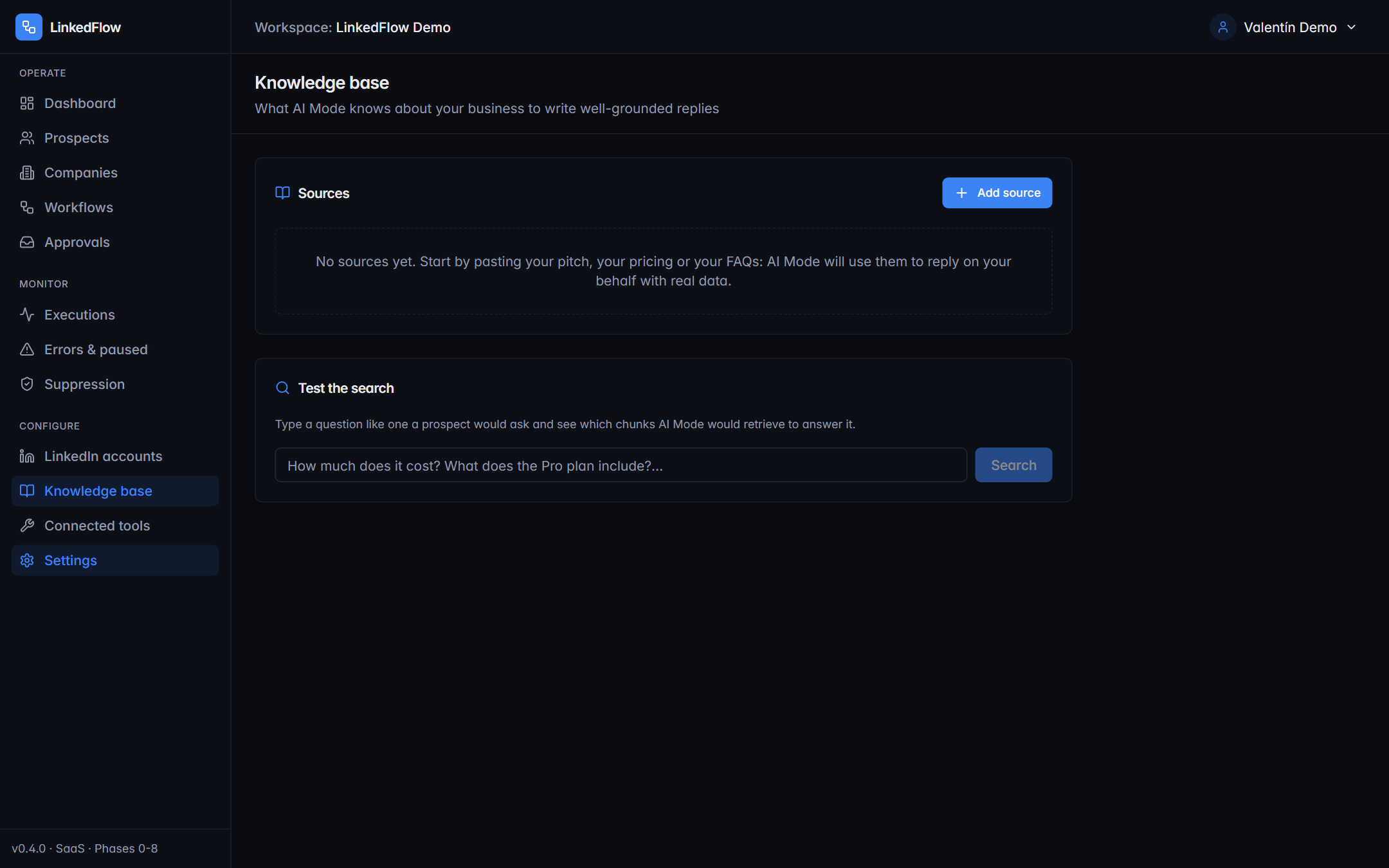
This is where what the AI can cite lives: your value proposition, pricing, common objections, success stories. Four source types:
| Type | Details |
|---|---|
| Text | Pasted directly. |
| File | PDF, TXT or Markdown, up to 10 MB. |
| URL | The page's content is downloaded and indexed. |
| FAQ | Question-answer pairs. |
Each source declares its language (es, en, pt, fr, de, it) so it's indexed properly. Re-ingest reprocesses an updated source, and Test the search shows you what the AI would retrieve for a given question — the best way to debug why it answers what it answers.
Connected tools
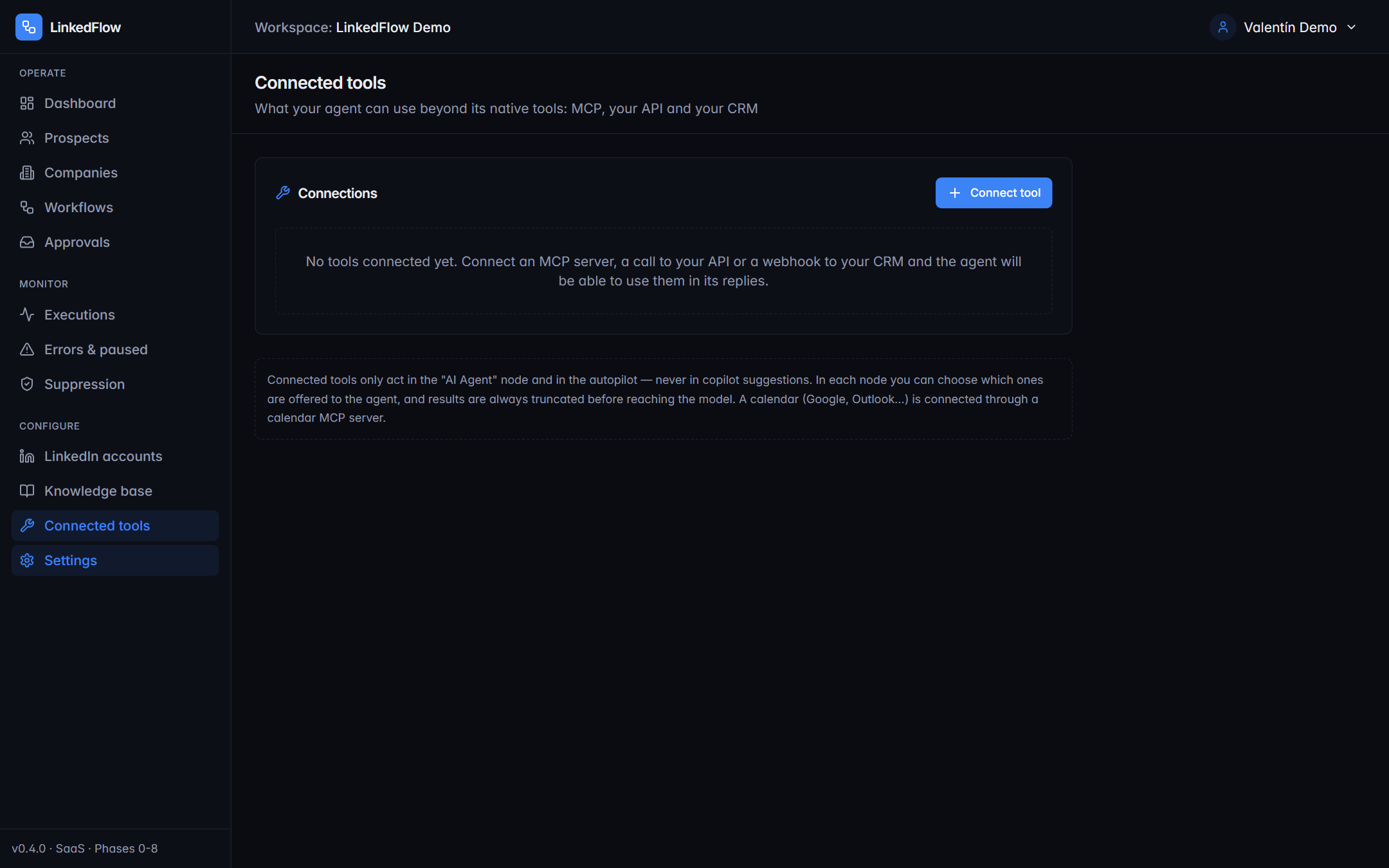
They extend what the agent can look up or touch (ADMIN role):
- MCP server: connect a remote MCP server and the agent discovers its tools (up to 30).
- HTTP call: an API of yours the agent can invoke (“check calendar availability”).
- CRM webhook: a signed alert to your CRM whenever the agent decides.
Each connection has a test button and an on/off switch. The results they return are truncated and time-boxed: a slow tool never hangs a conversation.
AI credits
The rule is simple: 1 credit = 1 generated reply, whether it comes from the copilot, the autopilot or an agent node. Monthly credits depend on the plan (0 / 250 / 1,500) and usage is shown in the sidebar and in Subscription. When they run out: the copilot tells you plainly and the autopilot degrades to suggestions. They renew with the billing cycle.
Your own models (BYOK)
If the LinkedFlow team enables this option for your workspace, in Settings → AI models you can use your own keys for Anthropic, OpenAI, OpenRouter or xAI:
- You save the key and LinkedFlow verifies it against the provider (you'll see “Verified” or “Rejected” with the reason). Keys are encrypted and never shown in full again.
- You pick your models from each provider's live catalog and mark a default model and a fallback to drop to if the first one fails.
- With your own key and a chosen model, your AI replies don't spend credits: the cost goes to your provider account.
If you don't see “AI models” in the sidebar, your workspace doesn't have the option enabled: ask the LinkedFlow team for it.