 LinkedFlow
 Connect your LinkedIn account
Without a connected LinkedIn account there is nothing to automate. There are two ways to connect it, and both end the same way: your session is held securely by our specialised provider and LinkedFlow works with it while respecting your limits.
Provider security and compliance. The specialized provider that handles the connection is SOC 2 Type II certified (independently audited security controls), GDPR compliant, and has kept 99.9% platform uptime over the last 24 months.
The Accounts screen
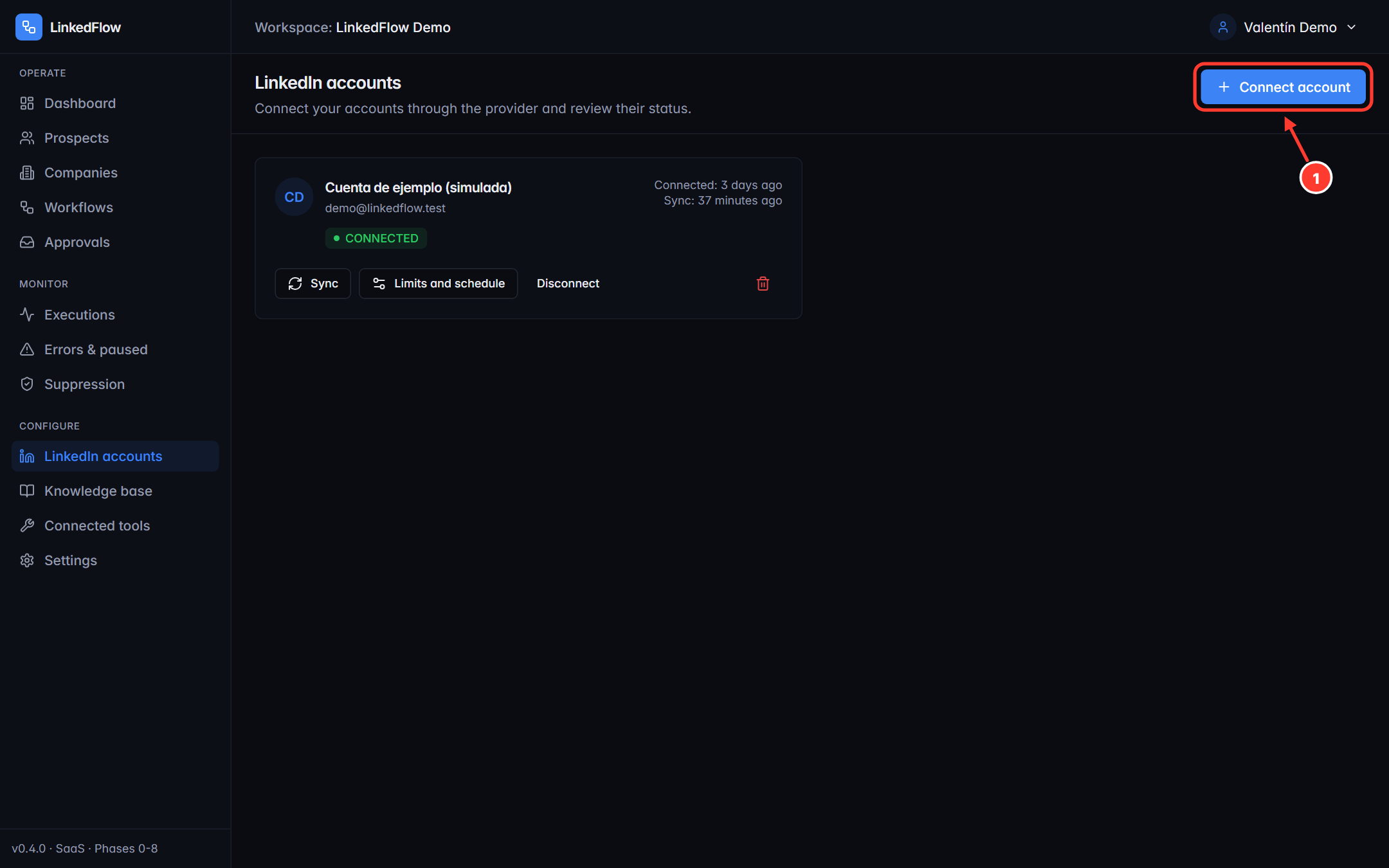
- Connect account opens the connection wizard. The number of simultaneous accounts depends on your plan (1, 2 or 5); disconnected ones don't count towards the limit.
On each card you'll see the account's status and its actions: Sync (refreshes the profile data), Limits and schedule (that account's quotas), Disconnect and delete.
Method 1 — The secure assistant
When you press Connect account, depending on how your workspace is configured you'll see the hosted assistant:
- Enter an optional label to recognise the account and press Open connection wizard: a tab opens with our specialised provider's secure assistant (it's in English).
- Enter the email and password of your LinkedIn account there. LinkedFlow never sees or stores that password.
- Come back to the LinkedFlow tab: the card will switch on its own from “pending” to “Connected” in a few seconds. If it doesn't, use Check or Reopen login.
Method 2 — Built-in form
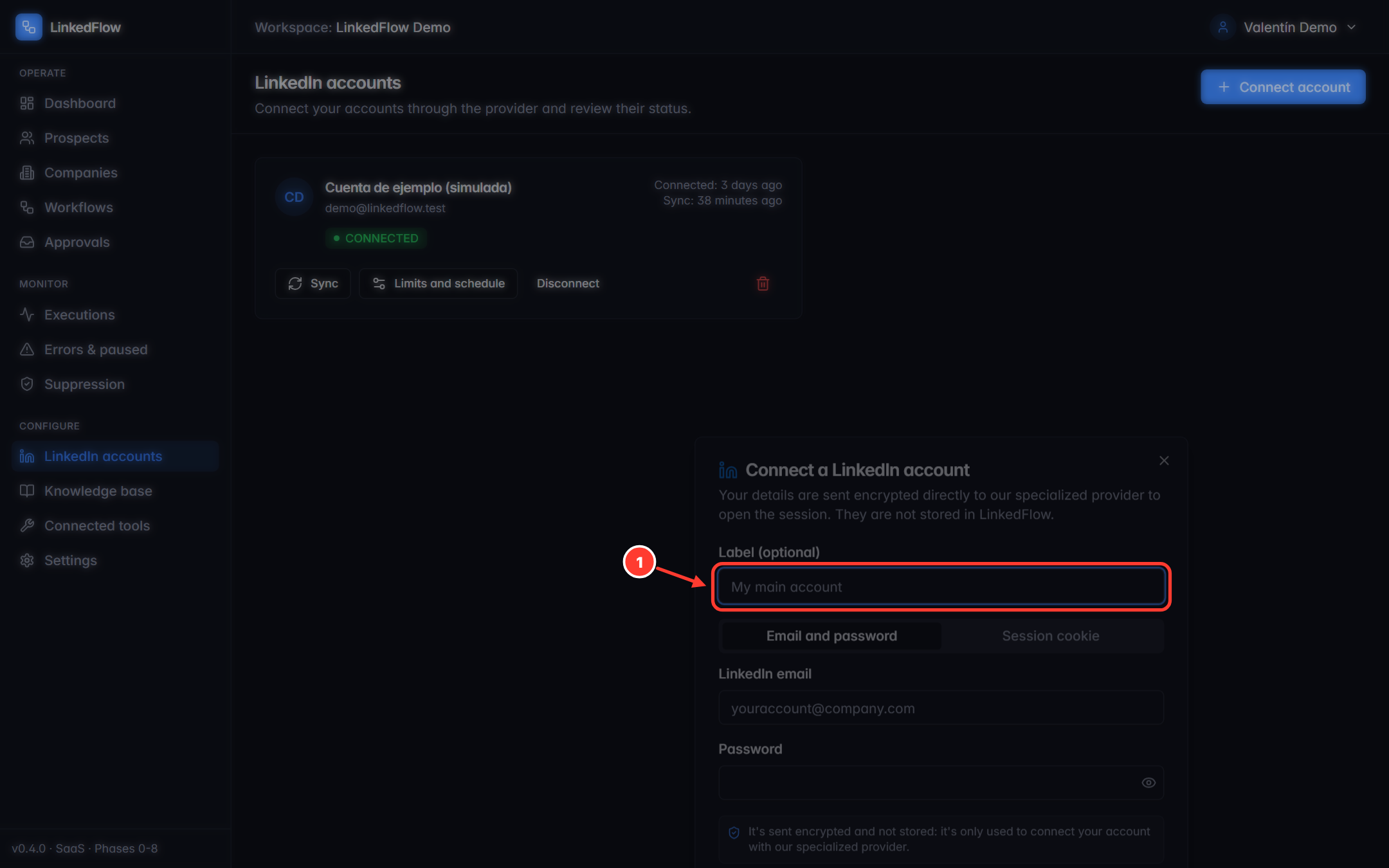
- Optional label to recognise the account (“My main account”, “Marta's account”…).
If your workspace has it enabled, the button opens this form inside LinkedFlow, with two tabs: email and password, or session cookie. Your details are sent encrypted directly to our specialised provider to open the session; they are never stored in LinkedFlow.
Two-step verification (checkpoints)
LinkedIn may ask for an extra check during the connection. LinkedFlow handles it without closing the wizard:
| What LinkedIn asks for | What you'll see |
|---|---|
| 2FA / OTP code | A field for the 6-digit code, with a 5-minute countdown and a “Try another method” button. |
| Approve from your phone | A waiting screen that resolves itself when you approve the access in the LinkedIn app. |
| Captcha or other cases | The wizard redirects you to method 1 (the secure assistant), which can handle them. |
If the session drops
If LinkedIn invalidates the session (password change, remote sign-out, temporary restriction…), LinkedFlow detects it and acts on its own:
- The account is paused: its waits are cancelled and its executions are stopped so nothing keeps pushing against a dead session.
- You receive a warning email and the account appears flagged on the Accounts screen.
- Resuming is always manual: reconnect the account and press Resume. LinkedFlow verifies that the session really came back to life before reactivating anything.
The automatic pause also kicks in after several consecutive provider failures or on signs of a LinkedIn restriction (captcha, checkpoint, block). It's the circuit breaker: it would rather stop than burn your account. The details are in Limits and safety.
Limits and schedule for each account
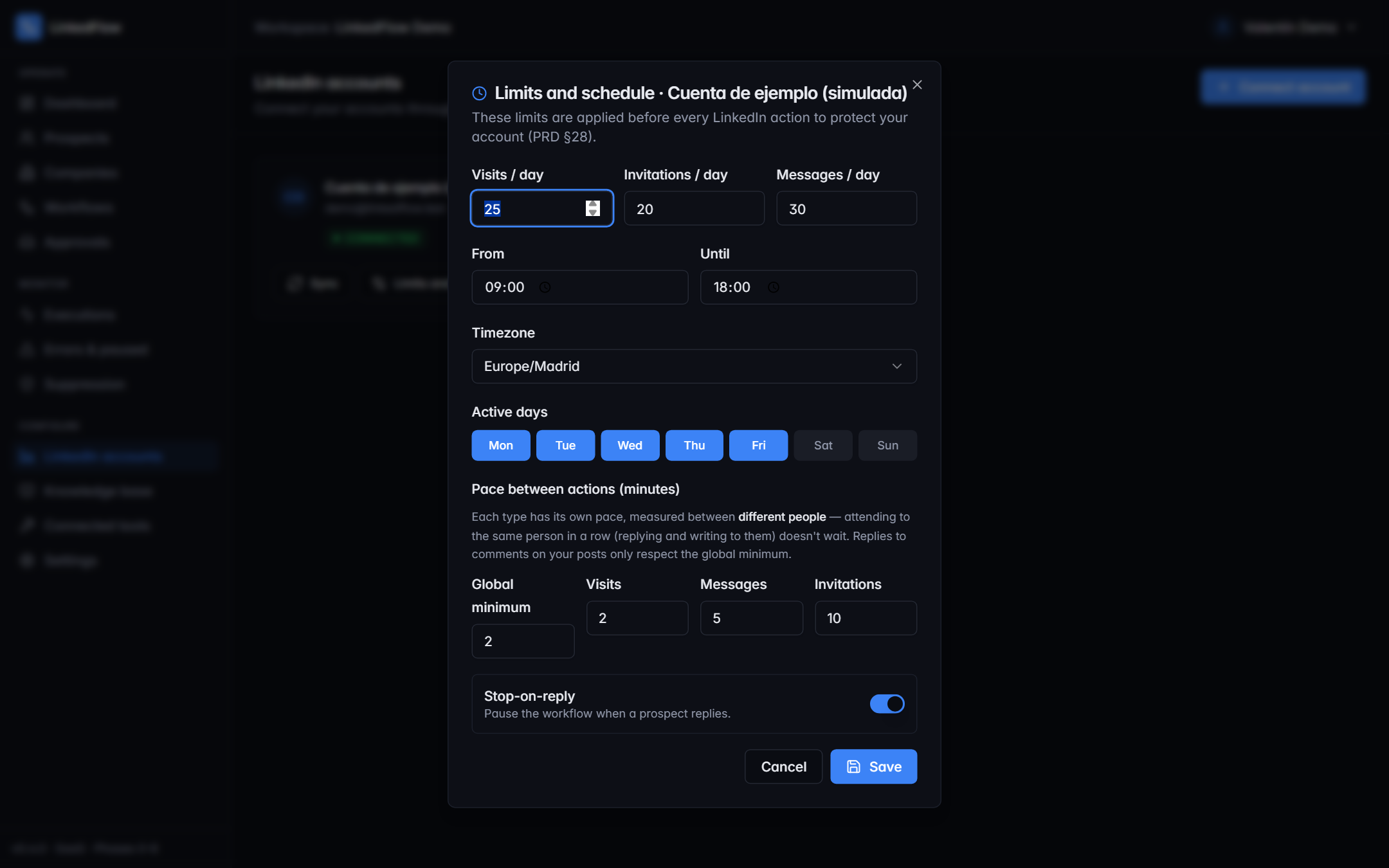
From here an ADMIN adjusts the daily quotas (visits, invitations, messages), the timezone, the activity window, the active days and the minimum pauses between actions. The default values and how they are applied are in Limits and safety.
Disconnect or delete
- Disconnect closes the session but keeps the account and its history; you can reconnect it whenever you want.
- Delete first closes the session at the provider and then removes the account from LinkedFlow. If the remote sign-out fails, nothing is deleted — so an orphaned session is never left open.